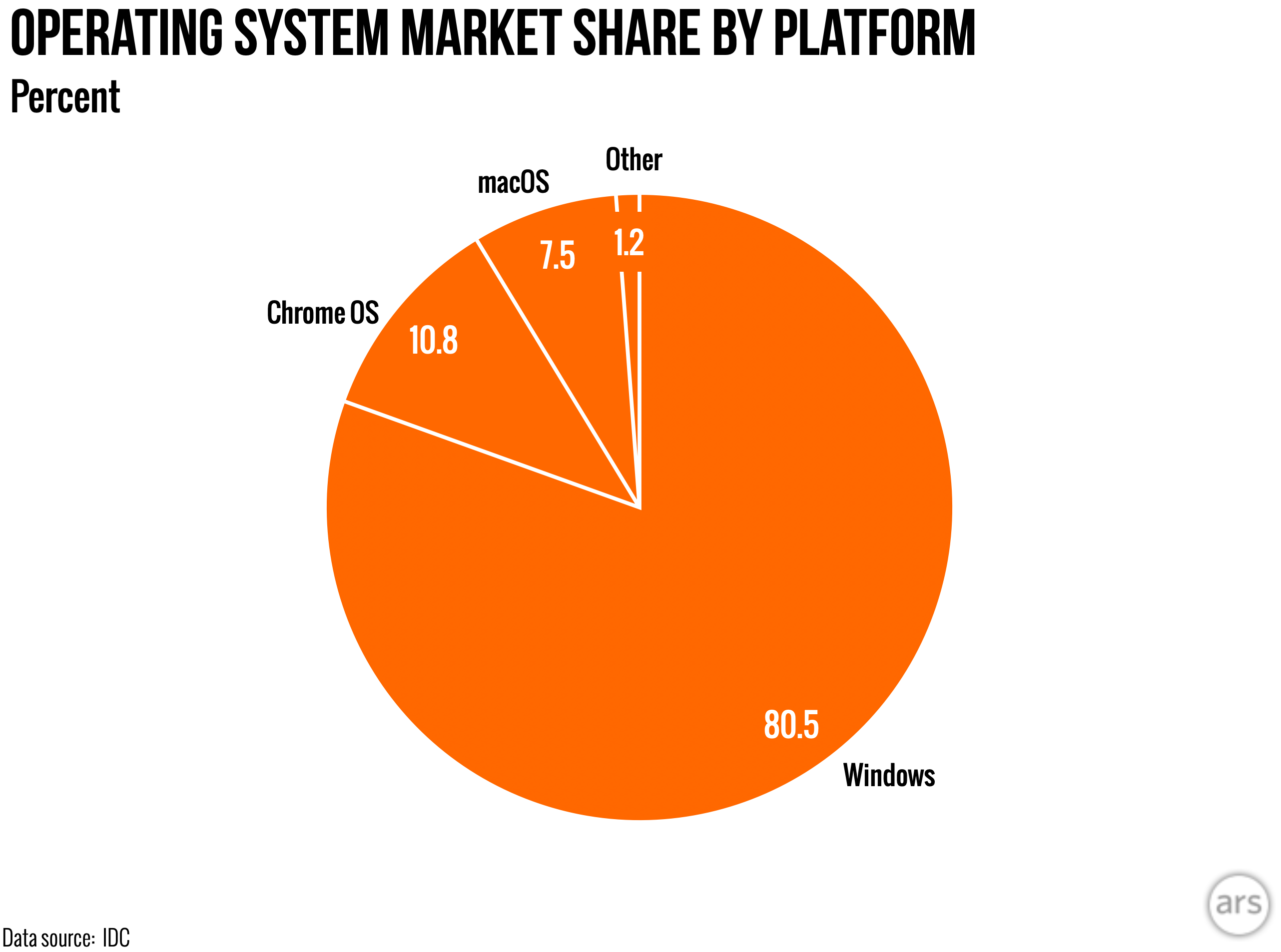
Windows is a prestigious software product developed by Microsoft, initially for business users, and is now available for anyone to use. Microsoft was founded in 1985 and its first product was Windows 1.0, the predecessor to all other versions of Windows. Windows is an operating system for personal computers, servers, and mobile devices. Windows for personal computers is the most popular amongst users, for instance, I use a Windows 10 device and there's a 70% chance that the person reading this article is on Windows too.
All Versions
The Windows operating system for PCs has been maintained over the years and can be followed with this timeline:
- 1980's: Windows 1.0 & Windows 2.0.
- 1990's: Windows NT, Windows 95 & Windows 98.
- 2000's: Windows Vista, Windows XP, and Windows 7.
- 2010's: Windows 8, Windows 10, and Windows 11.
You can read more about Microsoft Windows versions. Windows 11 was made available in 2021, it is the latest release and is compatible with devices that meet certain hardware and software requirements. You can learn more from the Microsoft website. I've had the privilege of using the Windows versions from 98 to Windows 10, so I'm an expert at cleaning windows 😉.
1. Focus Assist
Focus Assist allows you to choose which notifications you'd like to see and hear so you can stay focused on what you're doing. Focus Assist is accessible in the settings app under the system category. Alternatively, you could access it via the action center which is located at the far right on the taskbar by default as shown in the screenshot below:

The options to choose from in Focus Assist are:
Off: You can get all notifications from your apps and contacts.
Priority only: You will only see selected notifications from the priority list, and the rest will go straight to the action center. There is also the ability to customize the priority list. Customizing the priority list allows you to manage which notifications are allowed. You can control calls, texts, and reminders by enabling Show incoming calls, including VoIP or Show reminders, regardless of app used. You can also manage people. When enabled, only apps that support this feature will show notifications from people you choose, including Mail, Skype, Calling, and Messaging.
Alarms only: Hide all notifications, except for alarms.
The best feature of Focus Assist is the Automatic Rules in which you can choose the times and activities when you don't want to be disturbed, and focus assist will turn on automatically. You can configure it for certain times such as 08:00 PM - 06:00 AM 😴. The other rules you can apply are for duplicate displays, when playing games, or when using an app in full-screen mode. There is even a checkbox for showing a summary of what I missed while focus assist was on.
2. Preview Pane
The preview pane gives the user a sneak peek of data while navigating inside file explorer with no need to open the file. For instance, you could see the contents of a PDF file and not have it open in the taskbar. To toggle the preview pane, select the view tab in file explorer and click on preview pane. If it was not turned on, it will highlight the text.

With the preview pane turned on, I can see what's inside a file. This can be useful to conserve your RAM or laptop power because sometimes opening a file may use resources unnecessarily. Have a look at how I preview this PDF file:

Now, have a look at how I preview this image of my pet:

3. Cortana
Google Assistant, Amazon's Alexa, Apple's Siri, and Samsung's Bixby are just some examples of voice assistants that are built into proprietary devices. Cortana is the default voice assistant which was originally designed for Windows Phone 8.1 in 2014 and later included on other devices. On Windows 10, it can be accessed by saying 'Hey Cortana' and speaking your search. I live in Zimbabwe, and this feature is unavailable in our region if you are like me.

4. Adding An Event or Reminder
You can add a reminder by simply clicking on the date and time in the taskbar. This will open a context menu that displays a calendar and a form input where you can add the details of the reminder such as the time and location. An alarm will sound when the time comes to pass.

5. Screen Snip
Have you ever wondered how you take a screenshot on Windows 10? Screen Snip! This feature is accessible in the action pane and when opened, it will open the Snip & Sketch app so that you can choose which part of your screen to capture and save a picture of.

6. Task View

The task view shows a timeline of the most recently opened files on your computer and displays the currently opened files right at the top. The history can go as far back as a fortnight. With the task view activated, you can also add a New Desktop. If you're a programmer like me, a second or third desktop can be useful to show multiple outputs which make for easier troubleshooting.
7. Task Scheduler
The Task Scheduler allows you to schedule computer tasks automatically. You can use this tool to create and manage common tasks that your computer will carry out automatically at the times you specify. To access the Task Scheduler, press the Windows key or access the search bar in the taskbar and type 'task scheduler.' You can also find it in this location: C:\ProgramData\Microsoft\Windows\Start Menu\Programs\Administrative Tools. Here, you will also find several apps for diagnostics and monitoring.

8. Ease of Access
Microsoft caters to all types of users including those with disabilities. With the ease of access feature, users can improve their computer productivity with enhancements to their experience. Users can modify aspects of the output for problems related to vision, hearing, and interaction. One useful tool for people with vision problems is the Magnifier. With this tool, you can zoom on parts of the display and it can run in full screen, in a separate window, or as a lens that follows your mouse pointer around the screen. Users can also modify color filters, mouse pointers, and text sizes. Ease of Access is accessible in the settings app or on the start menu in the folder named Windows Ease of Access.

9. Disable Startup Apps
You might have the problem of your computer booting up very slowly. Although this can be caused by other issues such as old hardware, limited RAM, or full storage, applications that are activated as your computer boots up can slow down your computer. This trick is also useful if you just don't like it when your applications work autonomously. You can disable these apps in the Task Manager under the tab that says Startup. To access the Task Manager, look under C:\ProgramData\Microsoft\Windows\Start Menu\Programs\System Tools or you can type 'task manager' into the search on the taskbar. You can disable startup apps by right-clicking and selecting disable, you will notice the status of the application changing to Disabled. You can enable them by doing the same thing.

10. Visualize PC Performance
If you wanted more insight into the performance of your computer, you could analyze which applications are using up more resources than others within the Task Manager. Under the Processes tab, you can see resource consumption according to different categories such as CPU, Memory, and GPU. Clicking any of the column headers will automatically sort the data. The Performance tab displays a real-time line chart of resource usage.
Processes:

Performance:

Did you learn something new, or did you already know everything? If you didn't know any or some of the features listed in this article, drop me a line and let me know here.
Keyboard input is an important function of our computers. Read my other article about 10 Emoji and Their Meaning😎.